TimeNet Law 6 is a complete overhaul. Not a coat of paint. Not "I added an iPhone app." The core experience on your Mac has been rebuilt from the ground up, with new ways to navigate your day, capture time, undo mistakes, and see how your firm is performing.
Yes, there is an iOS companion app, and it's really good. But it is one of eleven things on this list. The real story is what happened to the Mac app.
Here is everything new, and why I built it.
Launchbar
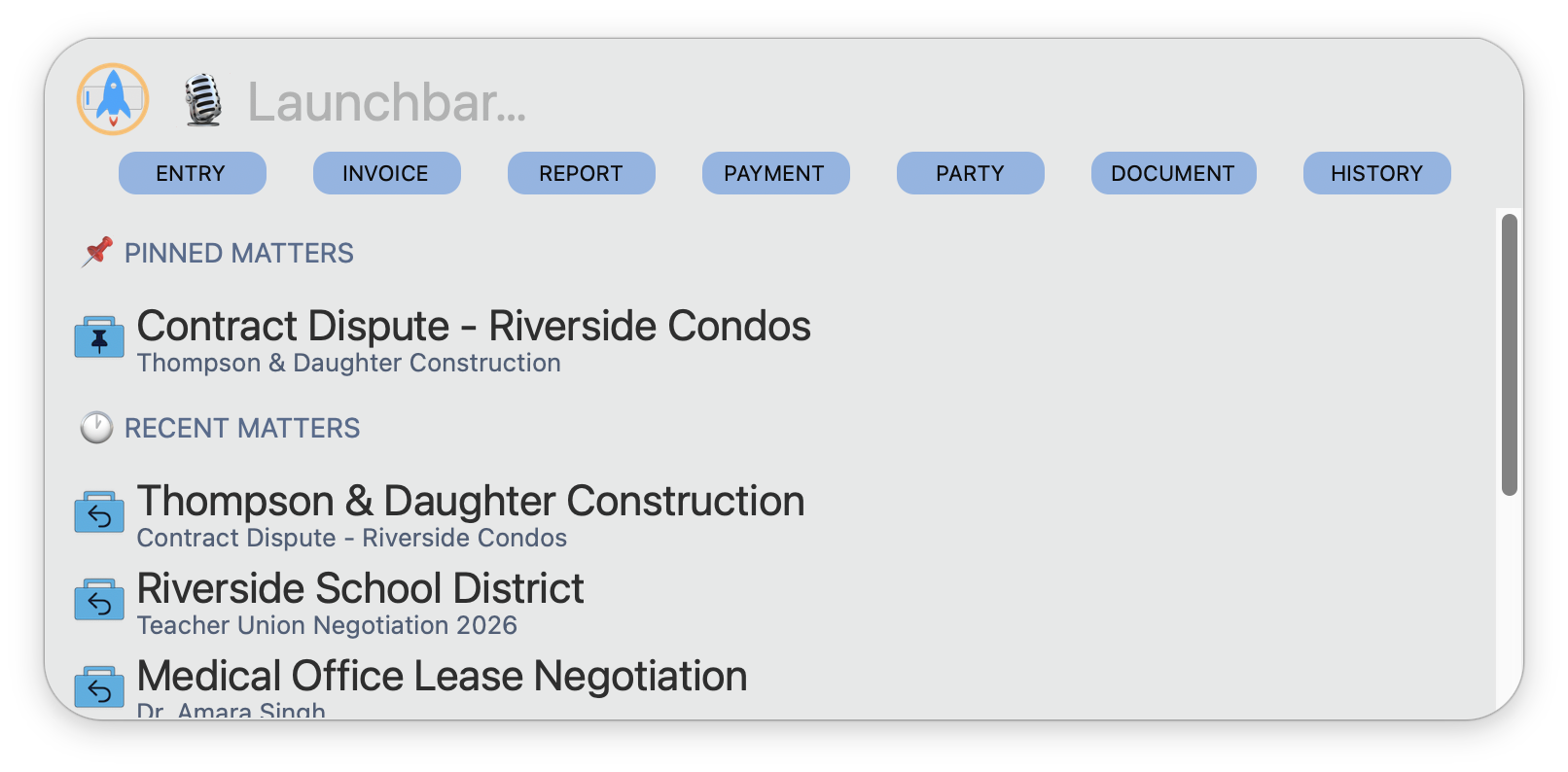
There's too many big features in version 6. I've constantly changed my mind about what my favorite one is. But Launchbar might just be it. Hit a customizable global keyboard shortcut and Launchbar appears. Start typing. SmartSearch finds clients, matters, contacts, and commands instantly. Hit Enter. Done.
Think of it as Spotlight for your law firm. You never have to dig through menus or hunt for a window. The Launchbar is the fastest way to get to anything in TimeNet Law, and once you start using it, you will wonder how you worked without it.
- Global keyboard shortcut activates it from any anywhere
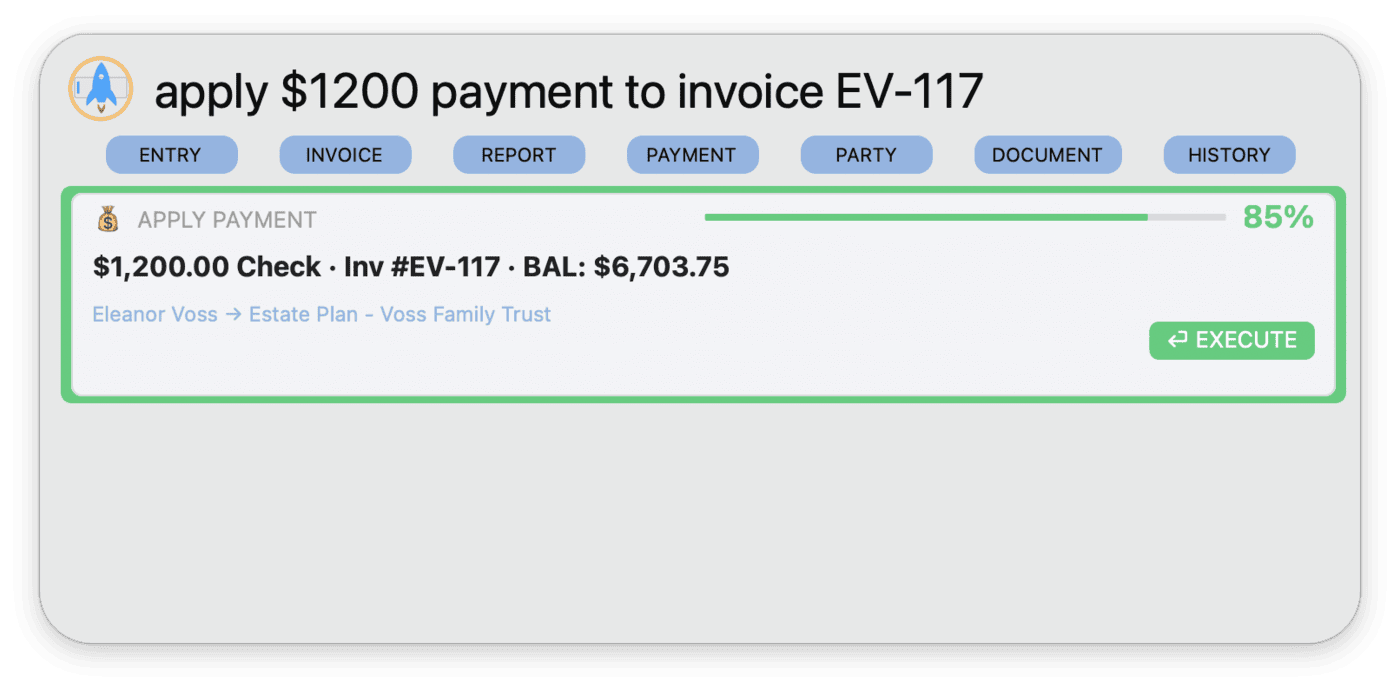
- 7 quick-action buttons across the top: ENTRY, INVOICE, REPORT, PAYMENT, PARTY, DOCUMENT, HISTORY
- Pinned Matters for instant access to your most-used matters
- Recent Matters shows your last-worked-on matters
- SmartSearch finds clients, matters, contacts, and commands as you type
- Fuzzy matching so you don't have to type exact names
- Microphone icon indicates Voice Command support directly from the Launchbar (more on that later)
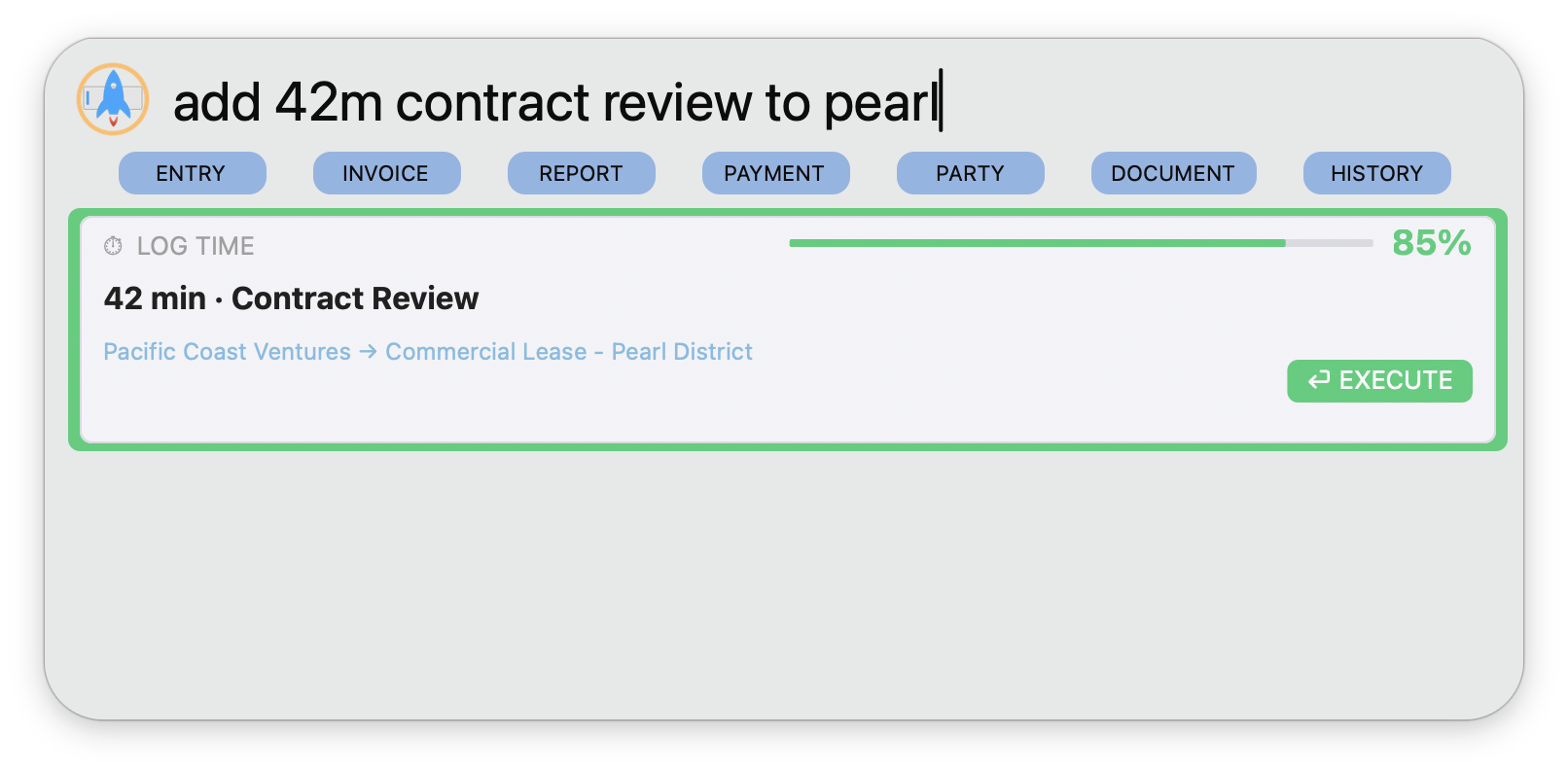
The Launchbar also understands natural language. Type a command like "add 42m contract review to pearl" and the parser breaks it down: LOG TIME action, 42 minutes, "Contract Review" description, matched to the Pearl District matter by fuzzy matching. An 85% confidence score confirms the parse accuracy, and a green EXECUTE button lets you confirm with one click.
If Launchbar can't target a matter with high enough confidence, it will filter to the most likely matches and let you manually pick the right one. Zero ambiguity.
Launchbar's keyboard shortcut can be customized to anything you want in Preferences > App Settings. Full Launchbar tutorial →
Launchpad, Redesigned
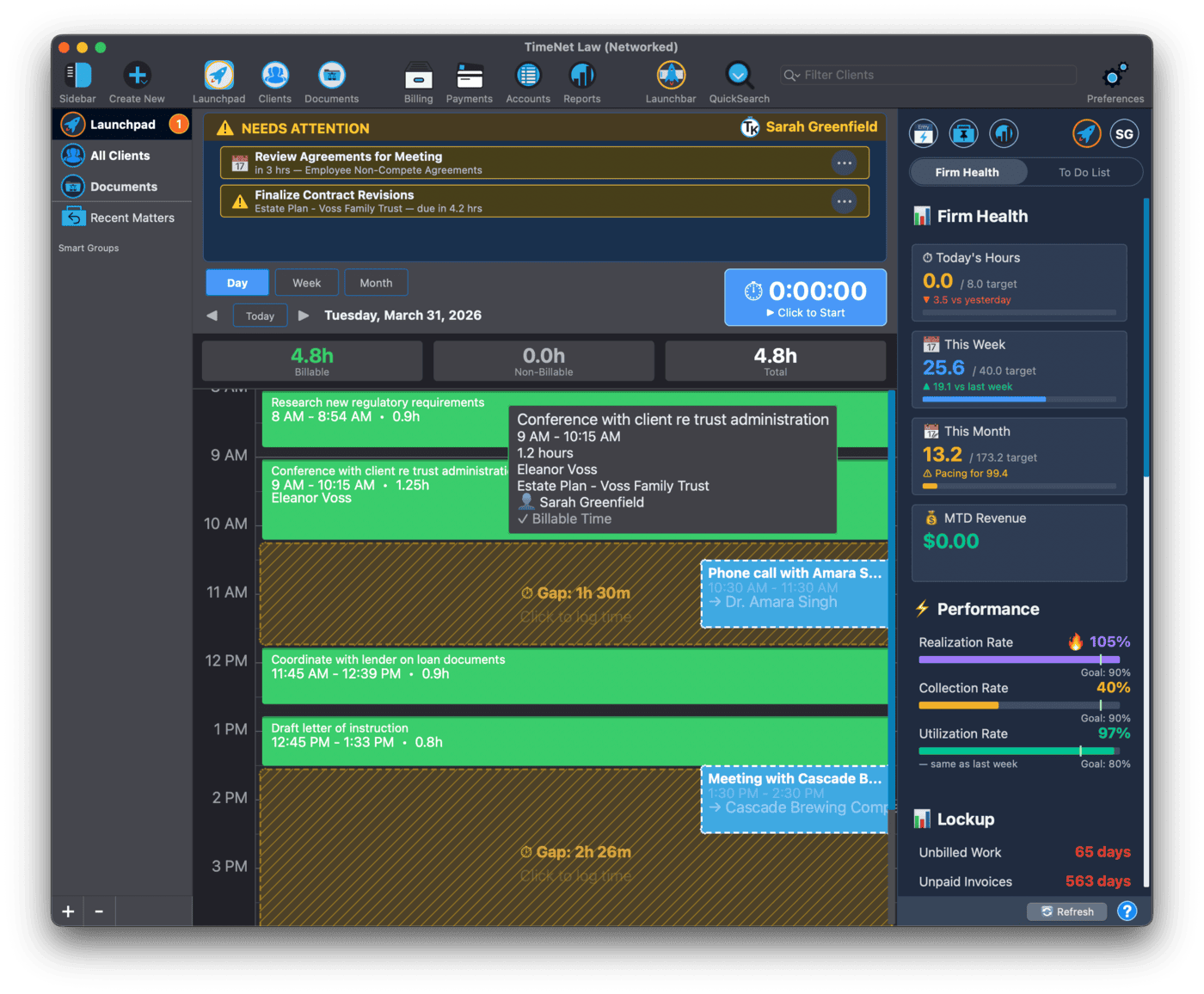
The Launchpad is not new. But in version 6, it has been completely rebuilt. Three views (Day, Week, and Month) replace the old single-day layout, and every piece of information you need is now visible without clicking into anything.
Rich tooltips appear as you hover over things in the calendar views, and you can click to instantly edit them right from Launchpad. No need to open clients or matters or hunt for the right file. Drag an entry to reschedule it. Glance at the Health sidebar for real-time firm metrics. This is mission control for your practice.
The new Needs Attention card sits front and center. Incomplete entries, unbilled time, overdue invoices. Upcoming appointments, filing deadlines, and more. All intelligently surfaced based on priority and consequence of missing. You won't be overwhelmed, either, as Needs Attention only shows you up to 3 items at a time, with the most important things floating to the top. Always alive, always accurate, nothing slips through the cracks anymore.
- Day, Week, and Month views with instant switching
- Needs Attention card monitors your law firm and shows you exactly what to work on next
- Drag to reschedule entries across days and timeslots
- Edit, create and delete right from Launchpad, with rich hover tooltips and right-click options
- Health sidebar with real-time utilization, hours billed, and revenue metrics. Click anything to run the relevant report instantly
- Keyboard shortcuts: 1 2 3 for views, N for new entry, C for Quick Capture, Space to start/stop timer, arrow keys for navigation
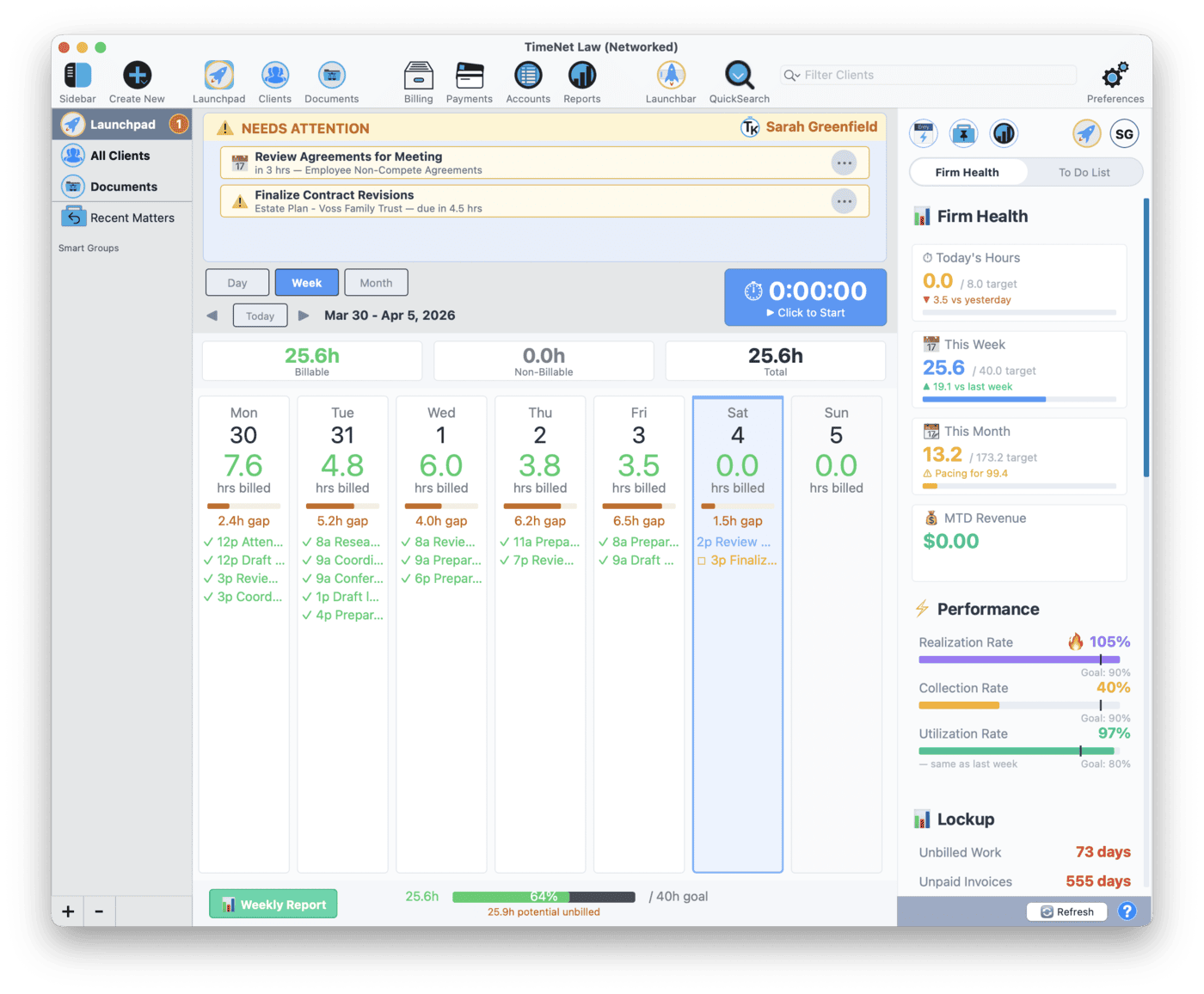
Start every day in the Launchpad. The Needs Attention panel alone will save you from missed billing. Full Launchpad tutorial →
Quick Capture
Quick Capture is a minimal floating window designed for one thing: getting a time entry recorded as fast as possible. It stays out of your way. No full app switch, no navigating to a form. Just a small window that appears, takes your entry, and disappears.
You are in the middle of drafting a brief and you just finished a phone call. Hit the shortcut, type the entry, save it. You never leave your document. That is the point.
- Minimal floating window that appears over whatever you are working on
- Keyboard-driven for speed. No mouse required.
- Does not interrupt your workflow. Capture the entry and get back to work.
- Same smart parsing for client and matter names
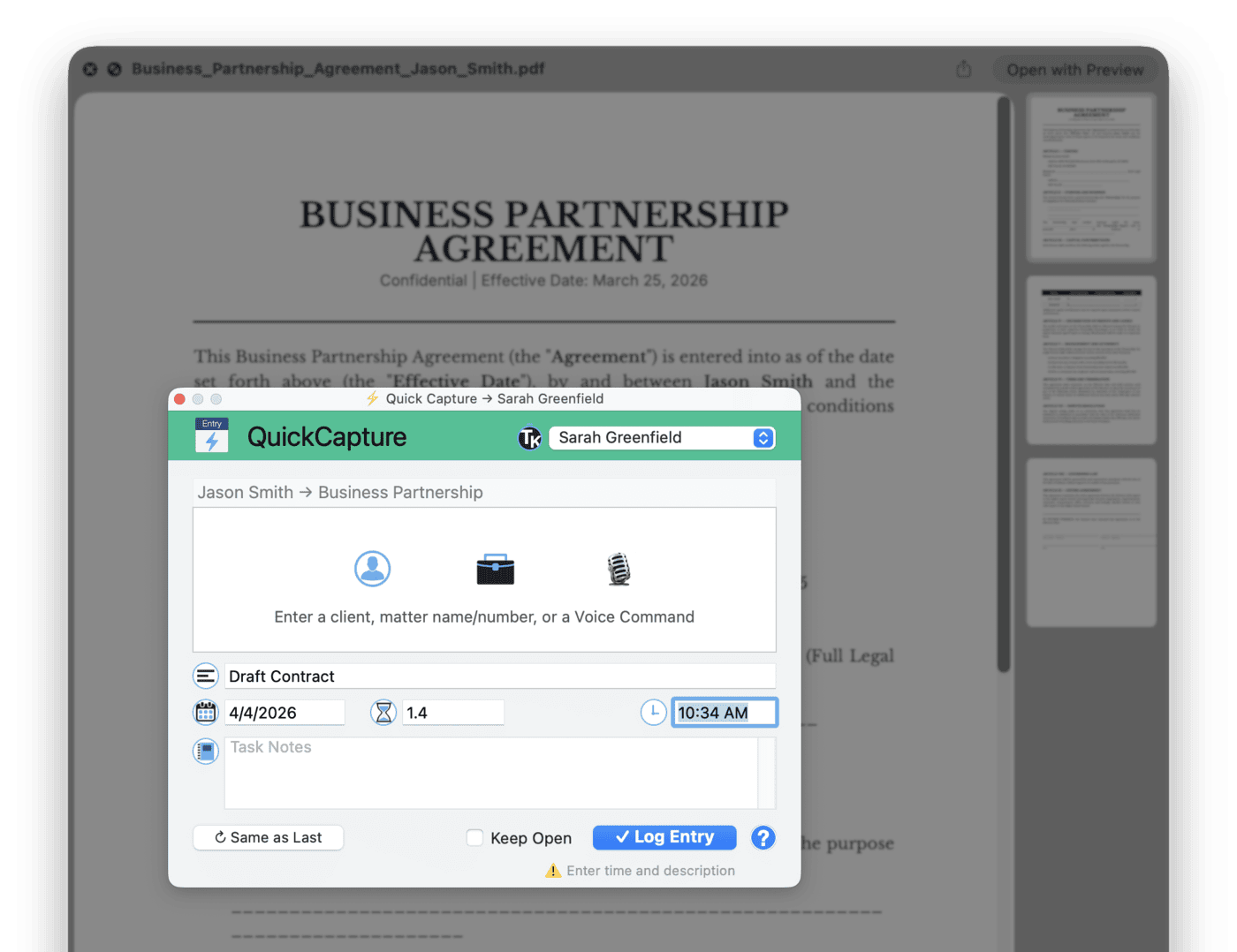
You can also launch Quick Capture from the Launchpad by pressing C, or from the Launchbar by typing "capture." Full Quick Capture tutorial →
Voice Command
Say what you did. TimeNet Law turns it into a time entry. This works on your Mac and on iOS, so whether you are at your desk or walking out of a courthouse, voice is always an option.
The parser is smart. It handles natural language for durations, figures out which matter you mean, and fills in the description. If it cannot determine the matter from context, it asks. If everything parses cleanly, one tap and the entry is saved.
- Works on Mac and iOS. Same parsing engine on both platforms.
- Smart word parsing handles "point five hours", "half hour", "45 minutes", and converts them all correctly
- Automatic matter disambiguation finds the right matter from partial names
- Editable transcript lets you review and tweak the parsed result before saving
- On iOS: Siri integration with 7 built-in phrases like "Hey Siri, start billing" or "Hey Siri, log my time"
- "Start billing"
- "Log my time"
- "Quick entry"
- "Add time entry"
- "Bill my time"
- "Record time"
- "New time entry"
On iOS, Siri works with CarPlay. Driving back from a deposition? Log the time before you forget, completely hands-free. Full Voice Commands tutorial →
2-Way Apple Calendar Sync
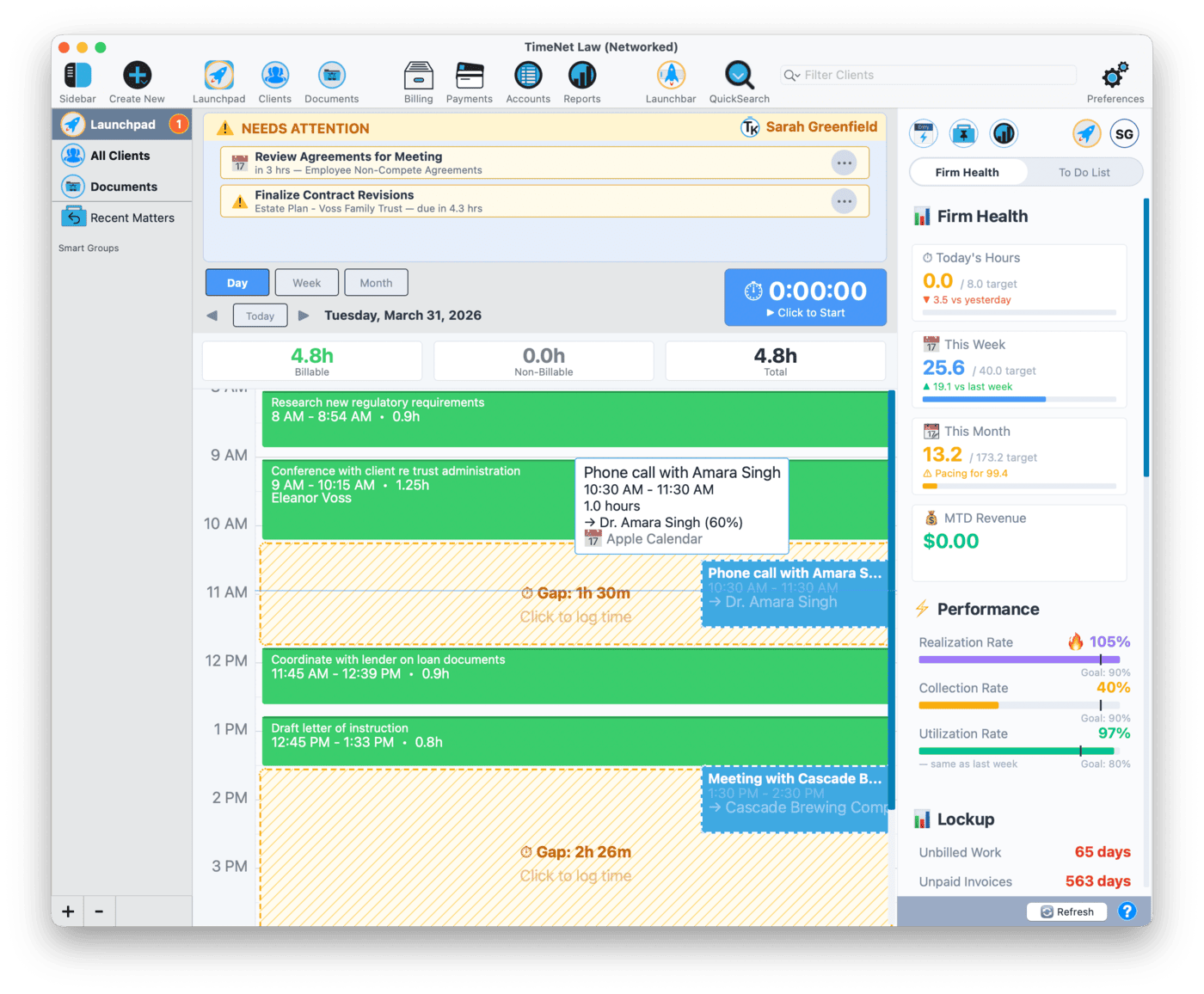
Your Apple Calendar already knows where you were all day. Meetings, hearings, client calls. Now TimeNet Law knows too. Calendar Sync pulls your Apple Calendar events into the Launchpad, so you can see your schedule and time entries side by side.
See a meeting on your calendar that you forgot to bill? One click converts it into a time entry. The client name, duration, and description are pre-filled from the calendar event. You review it, adjust if needed, and save.
- Pulls Apple Calendar events directly into the Launchpad
- One-click conversion from calendar event to time entry
- See your schedule and time entries side by side in the same view
- Pre-fills entry details from the calendar event (name, time, duration)
- Intelligent matter matching predicts what matter this event might belong to and shows you the confidence of its match
- Never miss billable time buried in your calendar again
At the end of each day, scan the Launchpad for calendar events you have not converted yet. It takes thirty seconds and catches time you would have lost. Full Calendar Sync tutorial →
Rewind
Every action you take in TimeNet Law 6 is preserved. Create an entry, edit a client, delete an invoice. All of it. Rewind gives you a full timeline of every change, and the ability to restore anything, anytime.
This is not a simple undo button. It is unlimited undo across every record type. Accidentally deleted a batch of entries? Rewind. Changed a rate and want to go back? Rewind. Made an edit three days ago that you now regret? Rewind. Dragged an entry to the wrong time or date? You get the picture.
Try that in a browser-based app.
- Unlimited undo for every action: create, edit, delete
- Full timeline of all changes with timestamps
- Restore anything, anytime. No time limit, no "last 10 actions" cap.
- Works across all record types: entries, clients, matters, invoices, contacts
- Granular control. Undo a single change without affecting anything else.
Rewind is especially useful during batch billing. If a batch goes sideways, you can reverse the entire batch in one step. Full Rewind tutorial →
Performance Report
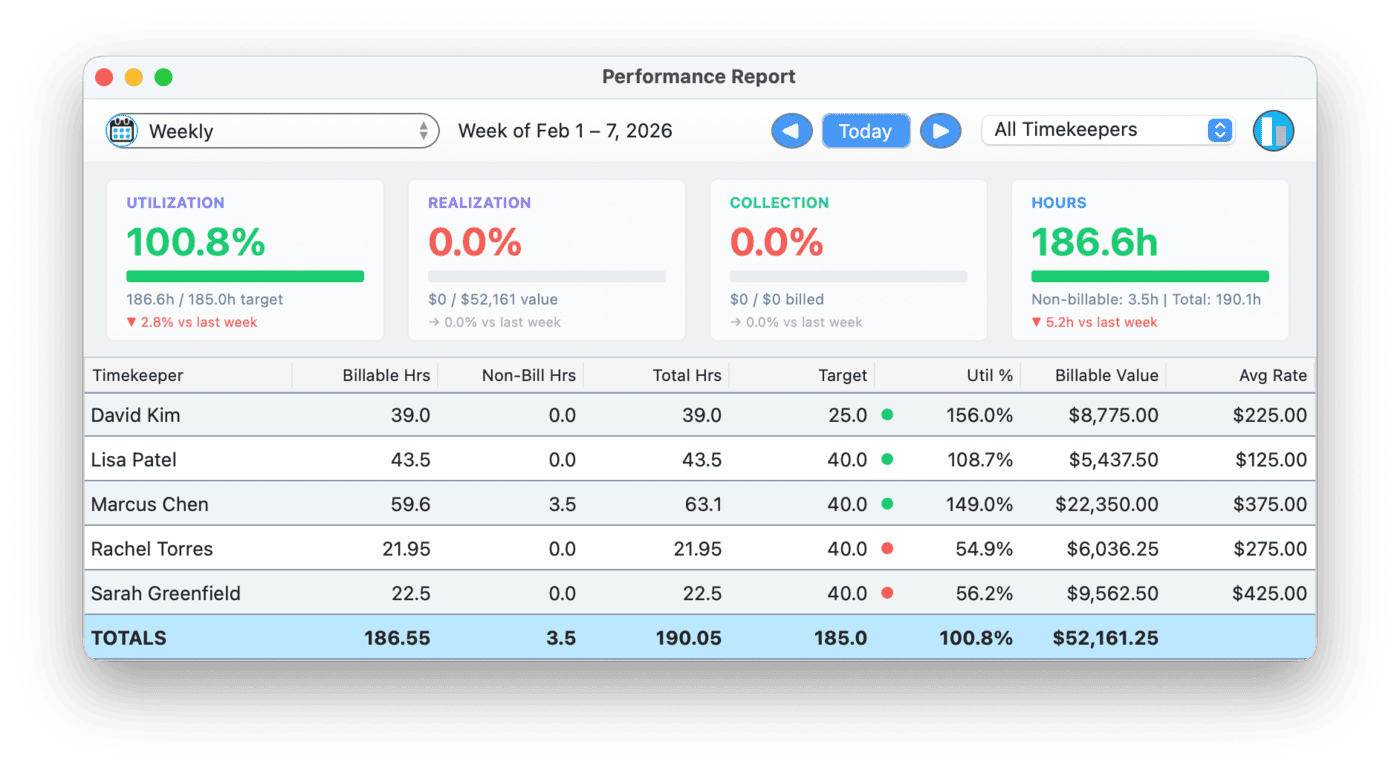
You should not have to export data to a spreadsheet to know if your firm is healthy. The Performance Report gives you utilization, realization, and collection metrics, broken down by timekeeper, with visual progress bars and trend indicators.
Pick a date range (weekly, monthly, or custom) and see how every timekeeper is performing against industry-standard targets. Who is billing enough hours? Who has too much unbilled time? Where is revenue actually coming from? These are the numbers that matter, and now they are one click away.
- Utilization, Realization, and Collection metrics in one view
- Per-timekeeper drill-down to see individual performance
- Weekly, monthly, and custom date ranges
- Visual progress bars and trend indicators
- Industry-standard targets built in so you know where you stand
Run the Performance Report on Monday mornings. Five minutes of review prevents an entire month of bad habits. Full Performance Report tutorial →
Referral Source Tracking
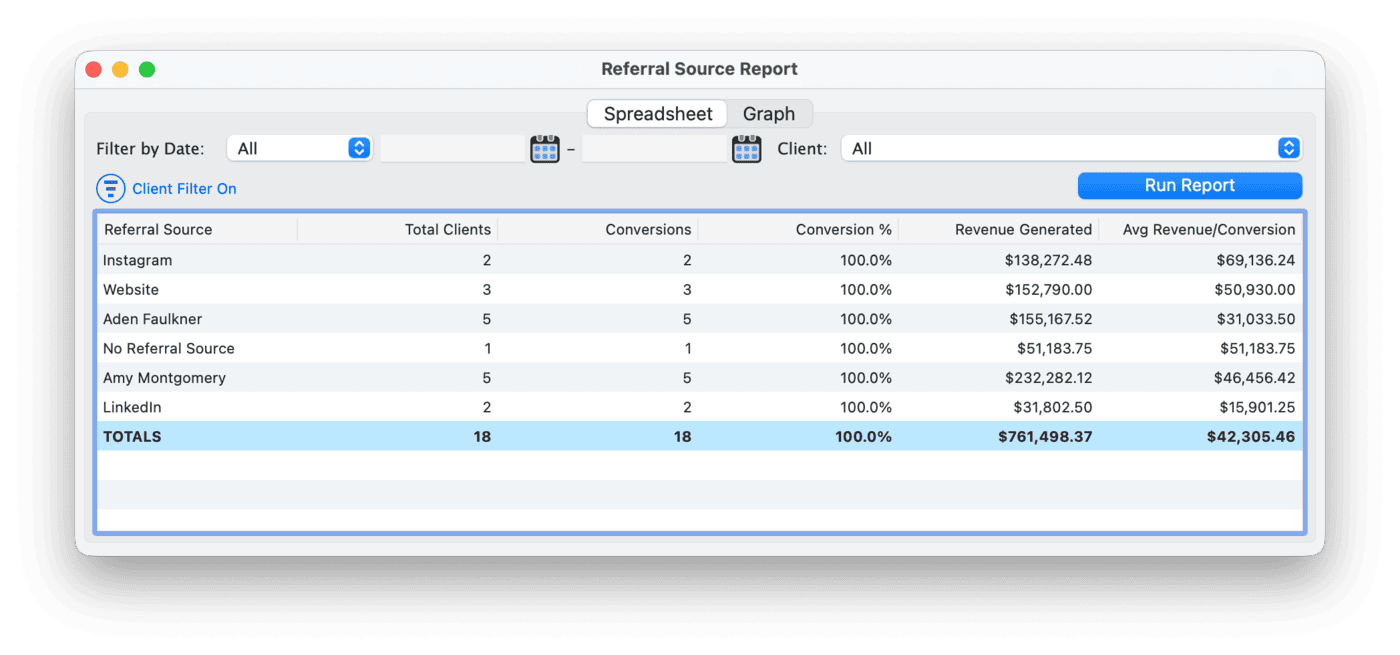
Every firm wants more clients. Few firms actually know where their clients come from. Version 6 adds referral source tracking so you can tag every client with how they found you, then run reports to see which sources are generating the most revenue.
Website? Bar association? A specific referral partner? Now you have the data to make smarter marketing decisions instead of guessing.
- Tag clients with referral sources when you create or edit them
- Run reports by referral source to see which channels perform
- Revenue attribution so you know which sources generate actual income, not just inquiries
- Make smarter marketing decisions with real data instead of gut feelings
iOS Companion App
For the first time in 23 years, TimeNet Law is not chained to your desk. The iOS companion app puts your clients, matters, and time entries on your iPhone and iPad with real functionality, not a watered-down mobile afterthought.
Voice entry works on the go. Siri integration means you can bill time without touching your phone. The app syncs with your Mac via Dropbox or iCloud Drive, no account to create, no subscription. Your data stays yours.
- Full companion app for iPhone and iPad
- Voice entry on the go with the same smart parsing as the Mac
- Siri integration for hands-free time entry from the lock screen, CarPlay, or AirPods
- Syncs via Dropbox or iCloud Drive. No extra accounts, no extra cost.
- iPad gets a pro sidebar layout that feels like a native desktop experience
- Not a dumbed-down mobile version. This is real functionality you will actually use.
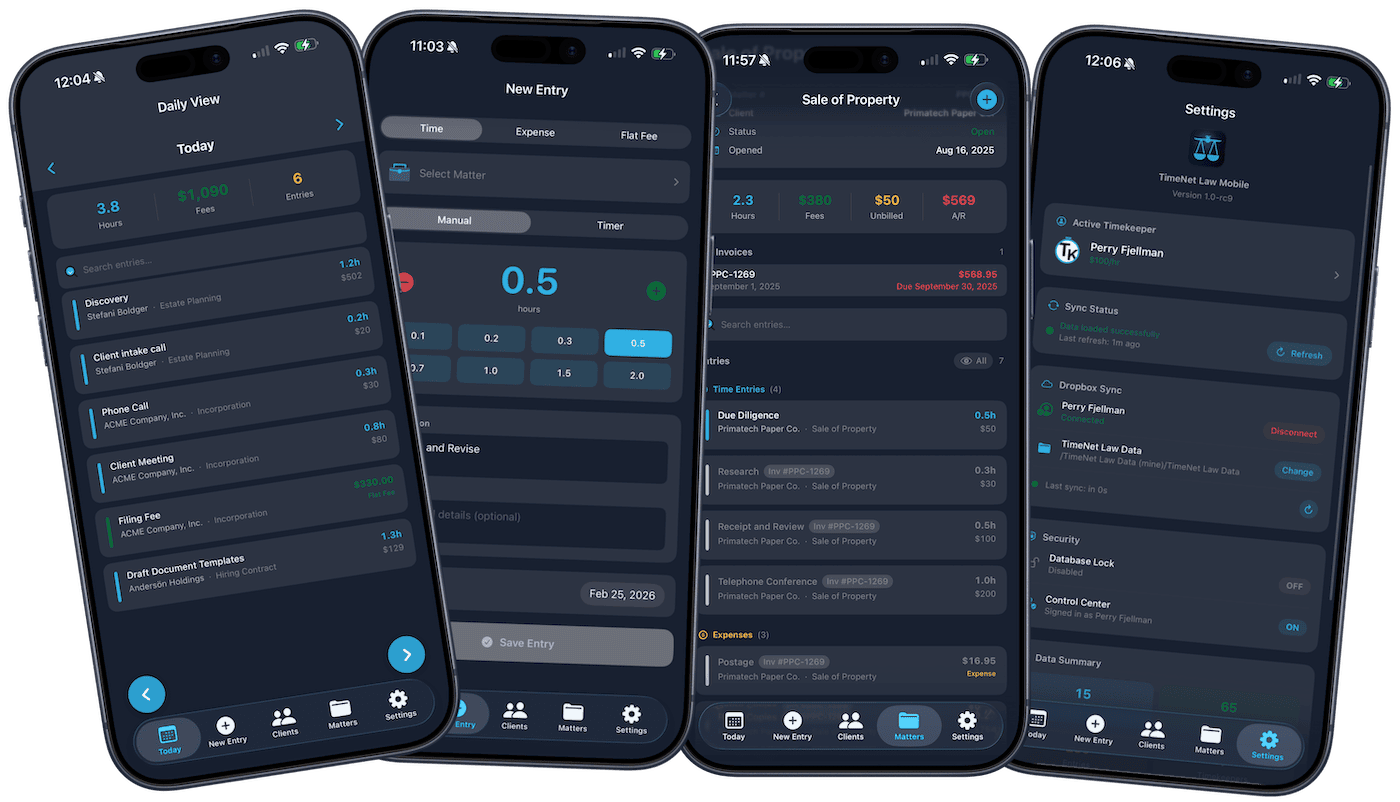
Already have Dropbox or iCloud Drive? Sync setup takes about two minutes. Full iOS Companion App tutorial →
Dark Mode
TimeNet Law 6 supports Dark Mode across the entire app. Every window, every dialog, every report. It inherits your macOS system appearance automatically, so there is no setting to configure. If your Mac is in Dark Mode, TimeNet Law is in Dark Mode.
If you bill at night (and you do), your eyes will thank you.
- Inherits your macOS system appearance automatically
- No setting needed. Just works.
- Every window, every dialog, every report respects the current mode
Everything Else
Beyond the headline features, version 6 is packed with improvements under the hood:
- Invoice Architect improvements for more control over invoice layout and formatting
- Batch billing enhancements with faster processing and better previews
- Bulk natural language import to bring in entries from text files and notes
- Improved data caching for faster startup and snappier performance
- Massive performance gains when running reports on large databases
- Document Management gets some big fixes and improvements, like bulletproof template field merging
Updating from version 5? Your data migrates automatically. Just open TimeNet Law 6 and everything transfers over.
Dive Into the New Features
Each major feature has its own in-depth tutorial. Start with whichever interests you most:
Questions About Version 6? Perry Built It. Perry Can Help.
Upgrading from an older version? Need help with the Launchbar or Calendar Sync? The person who wrote every line of code will walk you through it.