When you have hundreds of clients, scrolling through a flat list is not going to cut it. Groups and Smart Groups in the main window sidebar let you slice and organize your client list so you can find exactly who you need in seconds.
The Groups Tab in the Client Info Window
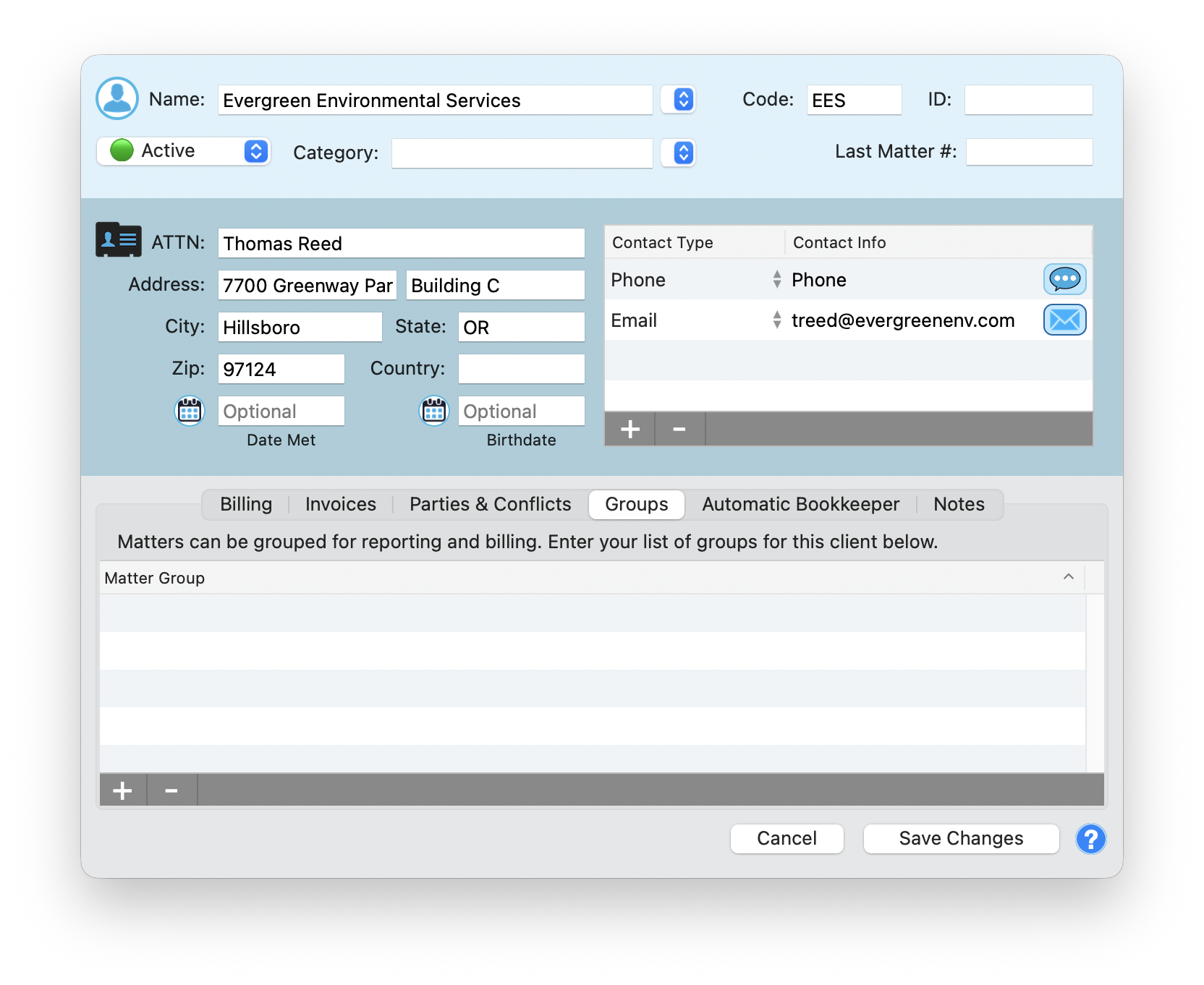
Inside each client's Info Window, the Groups tab lets you assign matter groups directly. The description reads: "Matters can be grouped for reporting and billing. Enter your list of groups for this client below."
The tab shows a simple table with a single Matter Group column. Use the + and - buttons to add or remove groups. Groups assigned here appear in reporting filters and billing summaries.
Groups: Manual Organization
Regular Groups are like folders for your clients. You create them, name them, and decide which clients go where. Simple, flexible, and completely in your control.
Creating a Group
Right-Click in the Sidebar
Right-click anywhere in the sidebar's group area and choose New Group.
Name Your Group
Give it a clear, descriptive name like 'Personal Injury,' 'Corporate Clients,' or 'VIP.'
Add Clients
Drag clients from the main list into the group. Or right-click a client, choose Add to Group, and pick the group.
Group Organization Tips
- Practice areas - Group by the type of work: Personal Injury, Estate Planning, Corporate, etc.
- Priority tiers - VIP clients, standard clients, pro bono
- Office or attorney - Group by responsible attorney or office location
- Nested groups - Create groups within groups for deeper organization (e.g., Corporate > Mergers, Corporate > Compliance)
A client can belong to multiple groups simultaneously. A corporate client who is also VIP? Put them in both groups. No need to pick just one.
Smart Groups: Automatic Organization
Smart Groups are the real power tool. Instead of manually adding clients, you define rules and TimeNet Law automatically populates the group based on those rules. The group updates itself in real time as your data changes.
Creating a Smart Group
Right-Click in the Sidebar
Right-click in the group area and choose New Smart Group.
Name the Smart Group
Give it a descriptive name that reflects its purpose, like 'Overdue Invoices 90+ Days.'
Define the Rules
Set one or more conditions. Each condition filters on a specific attribute of the client or their matters.
Choose Match Logic
Decide whether clients must match ALL rules or ANY rule to be included.
Save
The Smart Group populates immediately. Watch it fill with matching clients.
Smart Group Rule Examples
Here are some powerful Smart Group configurations:
- Active clients with open matters - Rule: Matter Status equals Open
- Clients with unpaid invoices over 90 days - Rule: Invoice Age greater than 90 days AND Invoice Status equals Unpaid
- Clients with no activity in 6 months - Rule: Last Entry Date is before [6 months ago]
- High-value clients - Rule: Total Billed This Year greater than $50,000
- Clients in a specific state - Rule: Client State equals "California"
- Matters approaching budget limits - Rule: Budget Utilization greater than 80%
Smart Groups update in real time. The moment a client's last invoice ages past 90 days, they appear in your 'Overdue 90+' Smart Group automatically. No manual tracking required.
Using Groups to Filter Your View
Click any group in the sidebar and the main client list instantly filters to show only clients in that group. This is the fastest way to narrow your focus.
- Click a group name to filter the list
- Click "All Clients" at the top to remove the filter
- The main list updates instantly with no loading delay
- Search within a group by typing in the search bar while a group is selected
Managing Your Groups
- Rename: Double-click the group name to rename it
- Reorder: Drag groups up and down in the sidebar to arrange them
- Delete: Right-click and choose Delete. Deleting a group does not delete the clients in it.
- Edit Smart Group rules: Right-click the Smart Group and choose Edit to modify its rules
Keep exploring:
- Tags and Custom Fields - Add tags to clients and matters for even more organization options
- Conflict Checking - Search your entire database for potential conflicts
- Client Management - Complete guide to client records and settings
Need Help Organizing Clients? Perry Can Help.
Perry can set up groups and Smart Groups tailored to your practice. You will find the right clients in seconds.