What You'll Learn
How to create contacts, link them to matters with specific roles, view all parties for any matter, and run contact reports for conflict checking.
Every matter involves people beyond your client: opposing counsel, co-counsel, witnesses, experts, judges, court clerks, mediators, and more. TimeNet Law gives each of these people their own contact record that you can associate with one or many matters. Build your database over time, and you will always know who is involved in what.
Creating a New Contact
Contacts live in their own database, separate from clients. A contact can be anyone involved in your practice who is not a client.
Open the Contacts Area
Navigate to the Contacts section from the sidebar or the main menu.
Click New Contact
Click the + button or use the menu to create a new contact record.
Fill in Details
Enter the contact's name, firm or organization, role type, email, phone, and address.
Save
Click Save. The contact is now in your database and available to associate with any matter.
The New Party Dialog
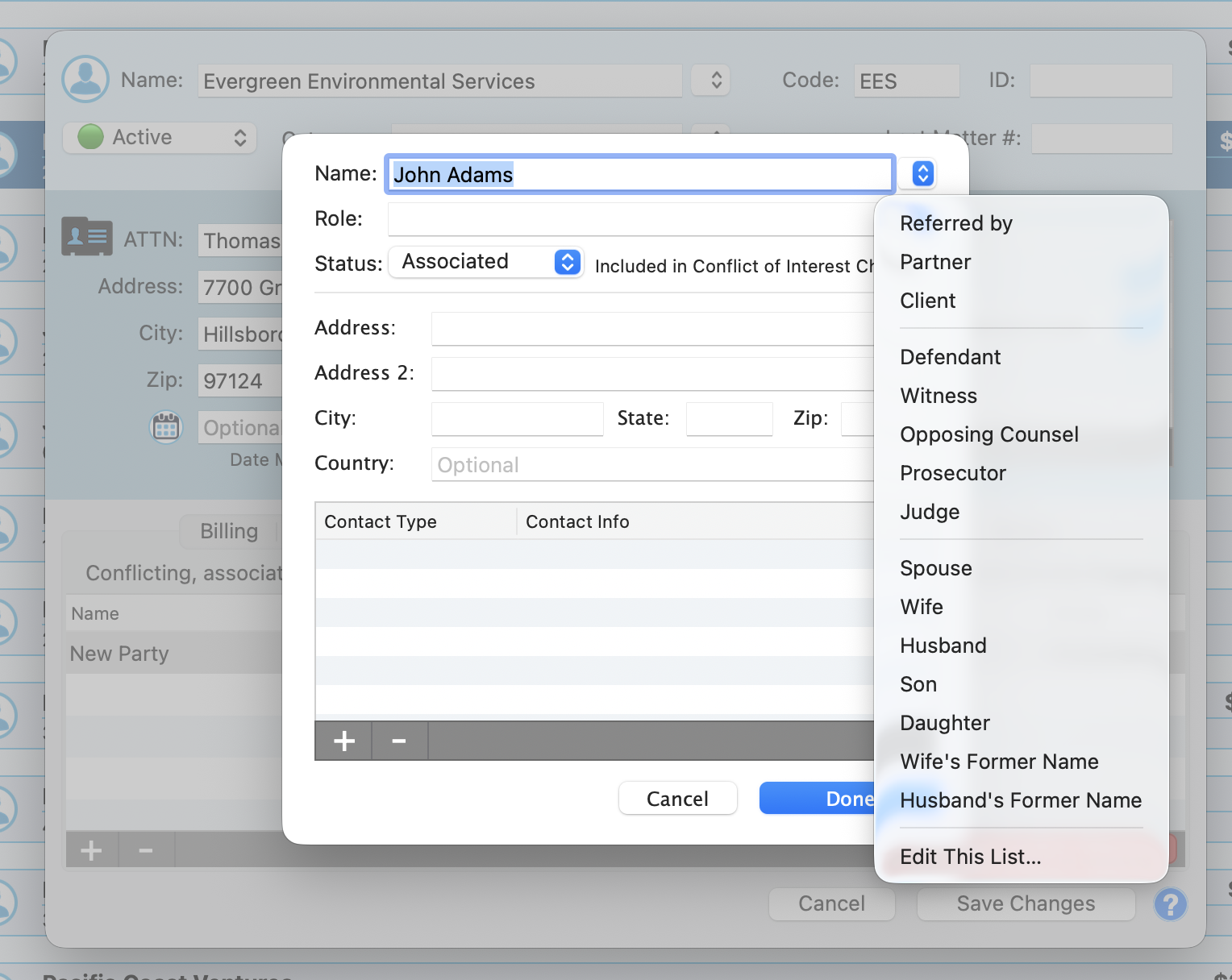
The New Party dialog collects everything you need for each party in one place:
- Name - The party's full name
- Role - A dropdown with an extensive default list organized in groups
- Status - Associated, Conflicting, or Neutral, with an "Included in Conflict of Interest Check" checkbox
- Address - Full address fields (Address, Address 2, City, State, Zip, Country)
- Contact Info - A table with +/- buttons for adding phone numbers, emails, and other contact methods
The Role dropdown is organized in groups with a rich default list:
- Business: Referred by, Partner, Client
- Legal: Defendant, Witness, Opposing Counsel, Prosecutor, Judge
- Family: Spouse, Wife, Husband, Son, Daughter, Wife's Former Name, Husband's Former Name
Roles are fully customizable. Select "Edit This List..." at the bottom of the dropdown to add, rename, or remove roles to match your practice.
Linking Contacts to Matters
Once a contact exists in your database, you can link them to any matter and assign a specific role.
Open the Matter
Navigate to the matter where you want to add the contact.
Go to the Parties Section
Open the Parties & Conflicts tab in the Client Info Window or Matter Info Window.
Add a Party
Click the + button to open the New Party dialog. Enter the party's name, select a role from the dropdown, and set the status (Associated, Conflicting, or Neutral). Check "Included in Conflict of Interest Check" to include this party in automatic conflict screening.
Fill in Contact Details
Add the party's full address (Address, Address 2, City, State, Zip, Country) and use the Contact Info table to add phone numbers, emails, and other contact methods with the +/- buttons.
Save
Click Done to save. The contact is now linked to the matter with the assigned role. Click Cancel to discard.
A single contact can appear in multiple matters with different roles. For example, an attorney might be opposing counsel on one matter and co-counsel on another. TimeNet Law tracks each association separately.
Viewing All Contacts for a Matter
Open any matter and check the Parties section to see everyone involved. The list shows:
- Contact name and role
- Firm or organization
- Phone and email (click to call or email directly)
- Date added to the matter
Sort by role to quickly find all opposing counsel, or sort by name to find a specific person. Need to email everyone on a matter? Select multiple contacts and send a group message.
Running a Contact/Party Report
The Contact/Party Report gives you a bird's-eye view of contacts across all matters. This is invaluable for conflict checking and understanding relationships.
Open Reports
Go to the Reports menu or the Reports section in the sidebar.
Select Contact/Party Report
Choose the Contact/Party Report from the list of available reports.
Set Filters
Filter by contact name, role type, matter, date range, or any combination.
Run the Report
Click Run. The report shows every contact matching your criteria, with their associated matters and roles.
Use this report to answer questions like:
- What matters has this opposing counsel been involved in?
- Which experts have we retained in the past year?
- Has this judge appeared in any of our cases before?
Contacts and Conflict Checking
Your contact database feeds directly into the Conflict Checking system. When you run a conflict search, TimeNet Law checks against all contacts and parties, not just client names. This means if a potential new client's name matches an existing opposing party, you will catch it immediately.
Keep your contact records thorough. The more data in your contact database, the more effective your conflict checks become. Always add all known parties when opening a new matter.
Keep exploring:
- Conflict Checking - Search your entire database for potential conflicts
- Groups and Smart Groups - Organize clients with manual and automatic grouping
- Client Management - The complete guide to managing client records
Questions About Contacts? Perry Can Help.
Perry will walk you through setting up your contact database so conflict checks run smoothly.