Before you take on a new client or open a new matter, you need to know whether any conflict of interest exists. TimeNet Law's conflict checking tool searches your entire database in seconds, checking client names, matter names, contacts, parties, and notes. It is fast, thorough, and essential for ethical compliance.
Opening the Conflict Check Tool
The conflict check tool is available from the Tools menu.
Open the Tools Menu
Click Tools in the menu bar at the top of the screen.
Select Conflict Check
Choose Conflict Check from the dropdown menu. The conflict check window opens.
You can also access conflict checking with the keyboard shortcut ⌘ + Shift + K.
Running a Conflict Search
The conflict check interface is straightforward: type a name, get results.
Enter the Search Term
Type the name of the person, company, or entity you want to check. You can enter multiple search terms to check against.
Click Search
Click the Search button or press Enter. TimeNet Law searches across your entire database.
Review Results
Results appear instantly, organized by match type.
What Gets Searched
The conflict check tool searches across all of these data sources:
- Client names - Both active and closed clients
- Matter names - All matter titles and descriptions
- Contacts and parties - Every contact record including opposing counsel, witnesses, and experts
- Notes - Client notes and matter notes
- Associated entities - Related companies, subsidiaries, and affiliated parties
Search variations of the name. Try 'Smith' and 'Smyth.' Try 'Robert' and 'Bob.' The more thorough your search, the more confident you can be in the results.
Understanding the Results
Results are organized to give you context, not just a list of names. For each match, you will see:
- Match source - Where the match was found (client name, contact, party, note, etc.)
- Associated matter - Which matter the match is connected to
- Role - If it is a contact or party, what role they played (opposing counsel, witness, etc.)
- Status - Whether the associated client or matter is active or closed
- Context - A snippet showing the matched text in context
This context lets you make an informed decision. A name match on a closed matter from five years ago is very different from a match on a current opposing party.
Documenting Your Decision
After reviewing results, document what you found and what you decided. Good conflict check documentation protects your firm.
- No conflicts found - Note the date, search terms used, and the clean result
- Potential conflict identified - Review with your ethics counsel or managing partner before proceeding
- Clear conflict - Decline the engagement and document why
Run conflict checks at the earliest opportunity, ideally during the initial consultation before any substantive work begins. The earlier you catch a conflict, the simpler it is to handle.
How Conflicts Work in the Parties Tab
Conflicts are managed in the Parties & Conflicts tab of the Client Info Window. The tab description reads: "Conflicting, associated or neutral parties. Matter parties also appear below. Conflicts are automatically flagged."
When you add a party whose name matches an existing client or party, TimeNet Law automatically flags it with a red exclamation mark icon. A Conflict Warning dialog appears with a scales of justice icon, telling you exactly who conflicts with whom. For example: "This client conflicts with John Adams who is an existing client."
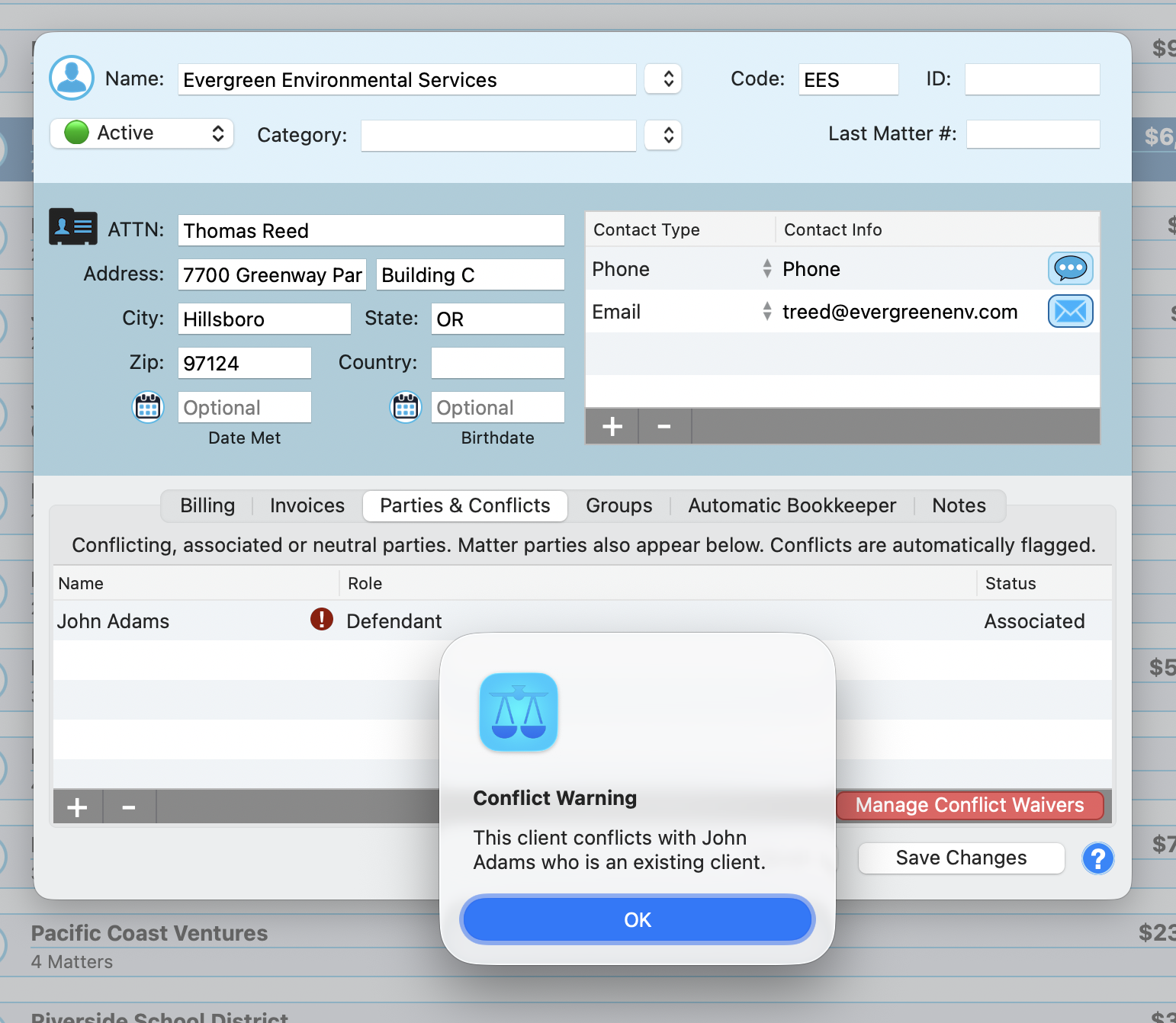
The red Manage Conflict Waivers button lets you acknowledge specific conflicts and document that a waiver exists. Each party entry in the table tracks three fields: Name, Role (from a customizable dropdown), and Status (Associated, Conflicting, or Neutral). Parties added to matters also flow up to the client level.
Party Roles
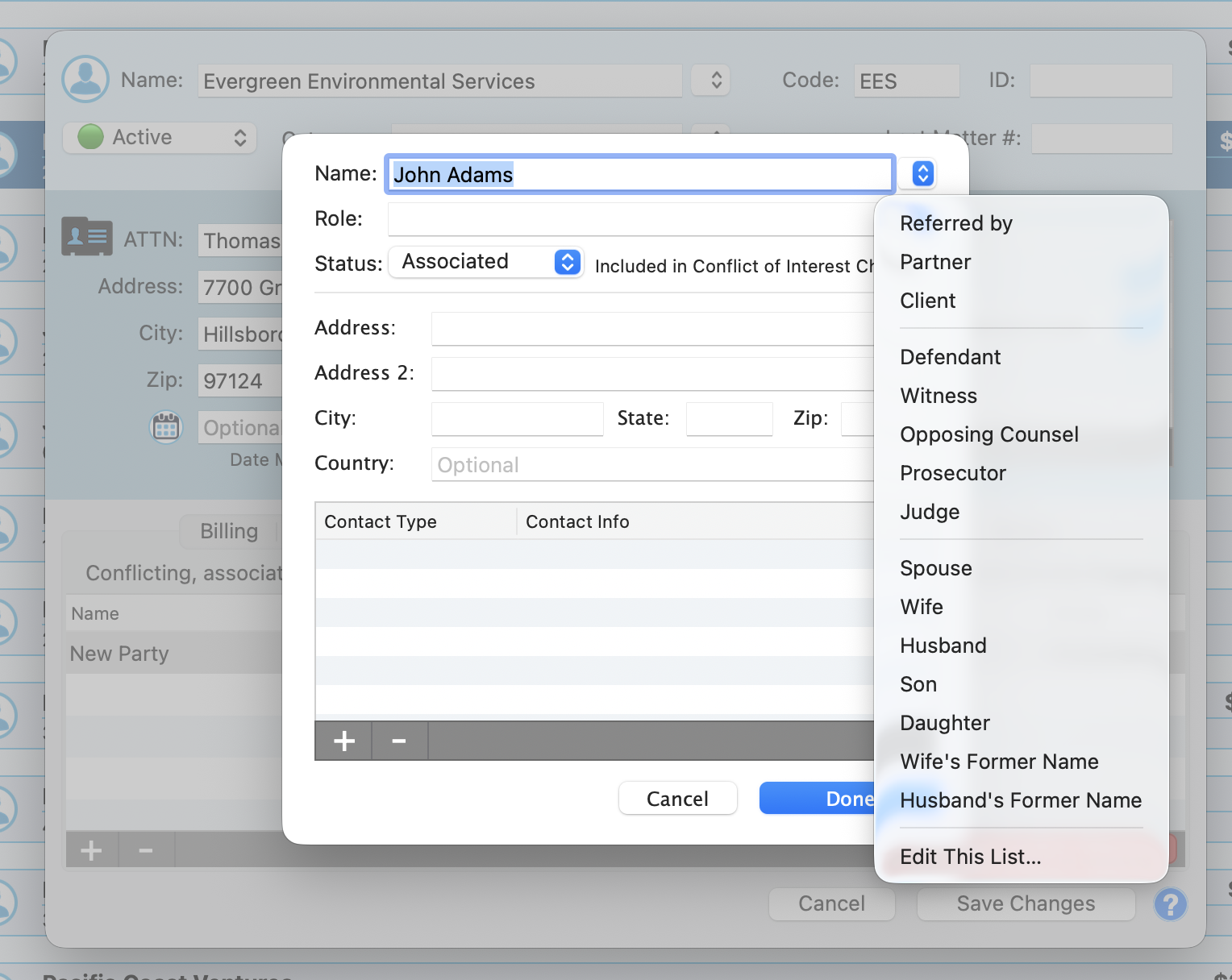
The Role dropdown provides an extensive default list organized in groups:
- Business: Referred by, Partner, Client
- Legal: Defendant, Witness, Opposing Counsel, Prosecutor, Judge
- Family: Spouse, Wife, Husband, Son, Daughter, Wife's Former Name, Husband's Former Name
Roles are fully customizable. Select "Edit This List..." at the bottom of the dropdown to add, rename, or remove roles to match your practice.
Conflict Check Best Practices
- Check every new client. No exceptions. Even referrals from trusted sources.
- Check every new matter for existing clients. A new matter may involve parties that conflict with other matters.
- Search broadly. Include all known parties, not just the opposing party. Check witnesses, experts, and involved companies.
- Keep your contact database current. The conflict check is only as good as your data. Add all parties to matters promptly.
- Document every check. Whether the result is clean or flagged, record it. Your future self will thank you.
Keep exploring:
- Contact and Party Management - Build a thorough contact database for better conflict checks
- Custom Fields and Entry Topics - Add custom fields to matters for detailed tracking
- Client Management - Complete guide to managing client records
Conflict Check Questions? Perry Can Help.
Perry will walk you through running thorough conflict checks so you can take on new work with confidence.