If you bill the same type of work regularly (and you do), Shortcuts are about to become your favorite feature. Define a short code, attach it to a client and description, and from that point on, entering that time takes about two seconds. Type the code, hit enter, done. It is billing on autopilot.
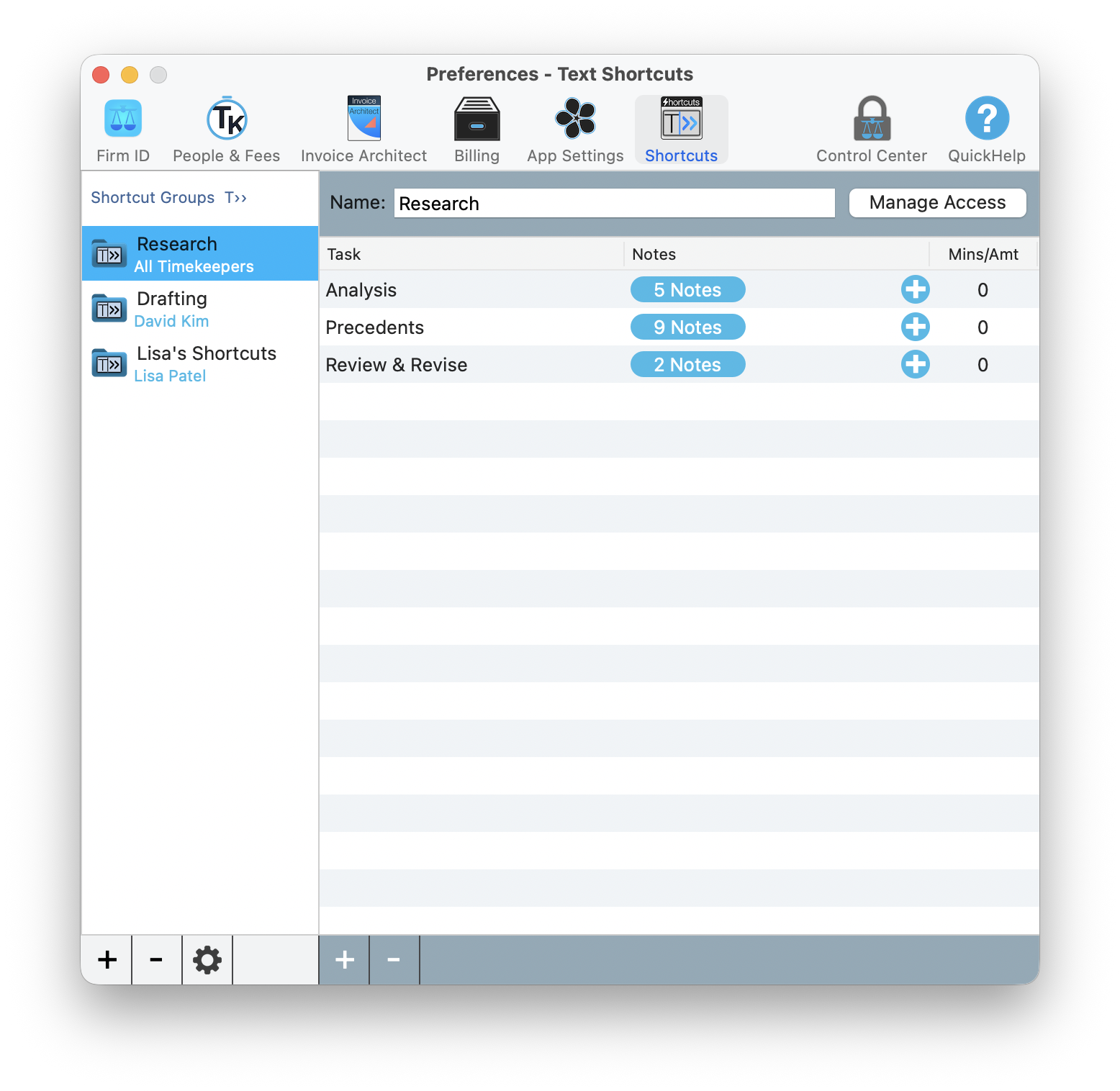
The Shortcuts tab in Preferences showing shortcut groups on the left and task details on the right
What Are Shortcuts?
A Shortcut is a predefined billing template. Each shortcut has a code (like GRC or WKR) and a set of preset notes. When you type that code during time entry, TimeNet Law auto-fills the description from your preset notes. No retyping. No copy-pasting from yesterday. Just the code and you are done.
Each shortcut can include:
- A unique shortcut code (letters, numbers, or both)
- A preset notes array with multiple description options to choose from
- Assignment to a specific timekeeper or all timekeepers globally
Per-Timekeeper vs. Global Shortcuts
Shortcuts can be scoped two ways:
Global Shortcuts
Available to every timekeeper in the firm. Great for standard descriptions everyone uses: "Telephone conference with client," "Review correspondence," "Court appearance." Set them once, and the whole firm benefits.
Per-Timekeeper Shortcuts
Assigned to a specific timekeeper. Perfect for individual caseloads and personal billing patterns. A tax attorney's shortcuts will look very different from a litigator's.
Open Shortcuts Settings
Go to Preferences → Shortcuts.
Choose the scope
Select Global to create a shortcut for all timekeepers, or select a specific timekeeper from the dropdown.
Create the shortcut
Click + to add a new shortcut. Enter your code and description notes.
The Preset Notes Array
This is what makes Shortcuts powerful. Each shortcut does not just have one description. It has a preset notes array, which is a list of description snippets you can choose from when using the shortcut.
For example, a shortcut code GRC for the Garcia matter might have these preset notes:
- Telephone conference with client regarding case status
- Review and respond to correspondence from opposing counsel
- Research regarding motion to dismiss
- Draft correspondence to client regarding settlement offer
- Prepare for and attend court hearing
When you type GRC, a dropdown shows these options. Pick the one that fits, and the description is filled in. You can also edit the description after selection if you need to tweak it.
Build your preset notes array based on the actual descriptions you have billed in the past. Look at your last quarter of time entries for a client and pull the most common descriptions. That is your starter set.
Using Shortcuts During Time Entry
Shortcuts work in multiple entry contexts:
In the Shortcut Field
The time entry form has a dedicated shortcut field. Type your code there, and auto-complete kicks in immediately. As you type, matching shortcuts appear in a dropdown. Select one, choose from the preset notes, and the description fills in.
Start a new time entry
Open the Full Entry window, Quick Time Entry, or any entry method.
Type the shortcut code
In the shortcut field, start typing your code. Auto-complete shows matches as you type.
Select the shortcut
Choose the correct shortcut from the dropdown.
Pick a preset note
Select the description that matches your work from the preset notes list.
Adjust and save
Modify the duration, date, or description if needed, then save.
Auto-Complete Behavior
Auto-complete is smart about matching. Type just the first letter or two of your shortcut code, and all matching shortcuts appear. The list narrows as you type more characters. If there is only one match, it selects automatically. This means frequently-used shortcuts often require just one or two keystrokes.
Managing and Organizing Shortcuts
As your shortcut library grows, good organization keeps things fast:
- Use consistent naming conventions. Client initials + matter type works well:
GRCfor Garcia,CHNfor Chen,JNKfor Jenkins. - Keep codes short. Three to four characters is ideal. The whole point is speed.
- Review quarterly. Remove shortcuts for closed matters. Add new ones for active matters.
- Edit preset notes regularly. As a matter evolves, so do the descriptions you need. Keep your notes array current.
Have a partner or practice group leader set up global shortcuts for the firm's most common billing descriptions. This ensures consistency across the firm and gives new associates a head start.
Examples by Practice Area
Litigation
DEP- Deposition-related entries (prep, attendance, review transcript)DSC- Discovery entries (draft requests, review responses, meet and confer)MTN- Motion practice (draft, research, file, argue)
Corporate/Transactional
DDL- Due diligence entries (review documents, prepare checklist, report findings)DFT- Document drafting (draft agreement, revise terms, circulate draft)CLG- Closing entries (prepare closing binder, coordinate signatures, file documents)
Estate Planning
WLL- Will preparation (initial consultation, draft will, review with client)TRS- Trust work (draft trust instrument, fund trust, prepare amendments)PRB- Probate entries (file petition, inventory assets, court appearances)
Keep exploring:
- Text Expanders for inline phrase expansion
- Keyboard Shortcuts for app-wide key commands
- Quick Time Entry for fast manual entries
Shortcuts Not Working Right? Perry Can Help.
Screen share with the guy who built it. He'll get you sorted in minutes.