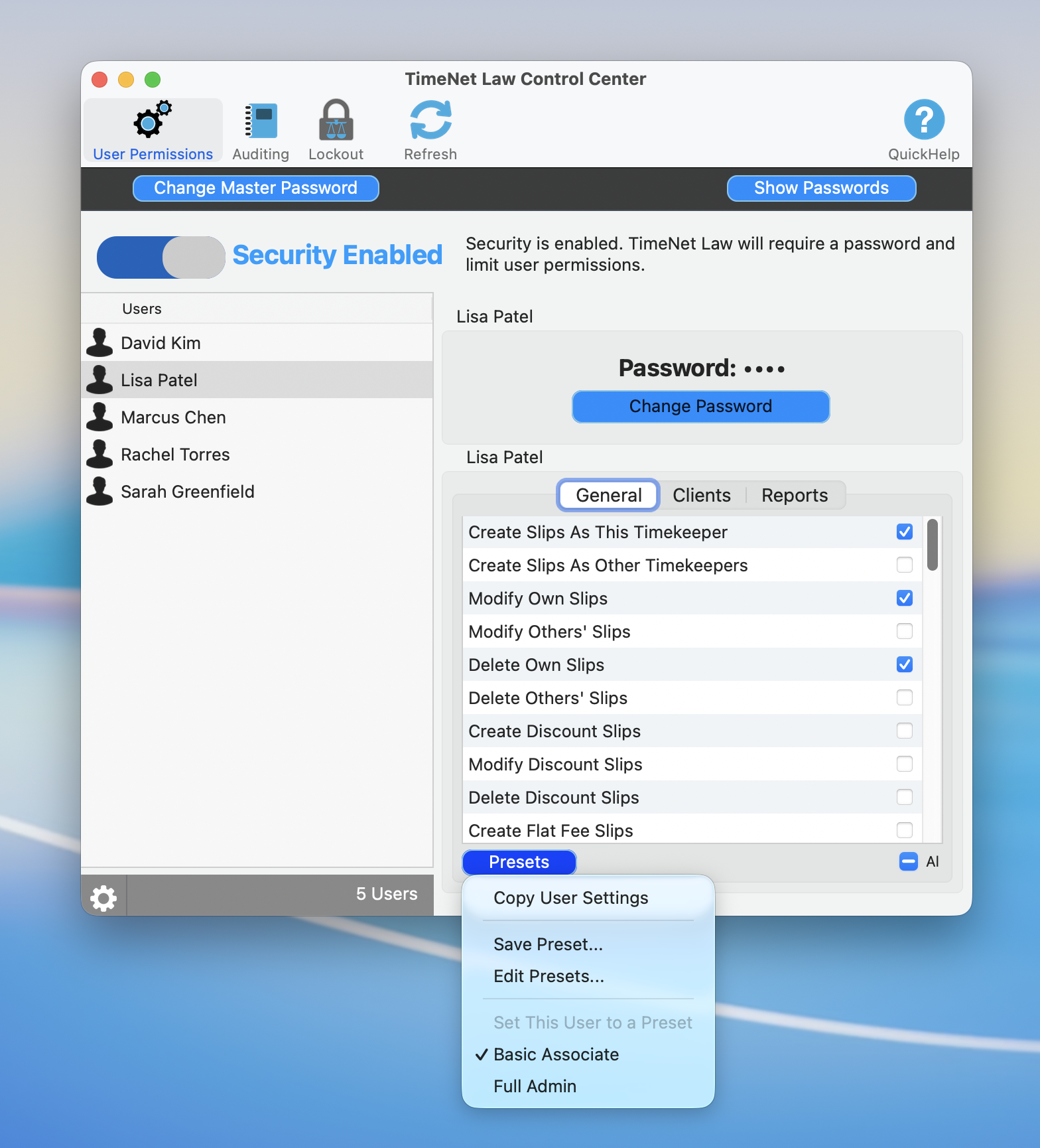
The User Permissions tab with General, Clients, and Reports sub-tabs for granular access control
Not everyone at your firm should see everything. The associate does not need to see partner billing rates. The secretary does not need to delete invoices. TimeNet Law gives you granular control over who can access, edit, and view every part of the system. Over 25 individual permissions, customizable role presets, and client-level visibility controls.
Roles and Presets
TimeNet Law includes built-in role presets that give you a sensible starting point:
- Partner / Administrator: Full access to everything. Create, edit, delete, and view all records, reports, and settings.
- Associate: Can create and edit time entries and expenses. Limited access to financial reports and billing settings. Cannot delete invoices or change rates.
- Paralegal: Can enter time and expenses for assigned matters. Read-only access to client financials. No access to firm-wide reports.
- Secretary / Support Staff: Can enter time on behalf of timekeepers. Limited to assigned timekeepers and matters. No access to financial data.
These presets are fully customizable. Use them as-is or modify them to match your firm's structure. You can also create entirely new roles from scratch.
Start with the closest preset and adjust from there. It is much faster than building a role from scratch, and you are less likely to accidentally leave a critical permission open.
The Permissions List
TimeNet Law offers over 25 individual permission controls. Each can be set to Full Access, Read Only, or No Access:
Time and Billing
- Create time entries
- Edit own time entries
- Edit other timekeepers' entries
- Delete time entries
- View billing rates
- Modify billing rates
Invoicing
- Generate invoices
- Edit invoices
- Delete/void invoices
- Apply discounts and write-offs
- Reissue invoices
Financial
- View financial reports
- View accounts receivable
- Record payments
- Access trust accounts
- Manage operating accounts
Client and Matter Management
- Create clients and matters
- Edit client and matter records
- Delete clients and matters
- View all clients (vs. assigned only)
System
- Access Control Center (audit log)
- Restore from audit log
- Manage user accounts and permissions
- Modify firm settings
- Backup and restore database
Setting Up a New User
Open User Management
Go to TimeNet Law → Settings → Users & Permissions.
Add a new user
Click + to create a new user account. Enter their name and login credentials.
Assign a role preset
Select the role that best matches their position: Partner, Associate, Paralegal, or Secretary.
Review permissions
The permissions grid populates based on the preset. Review each permission to confirm it is appropriate.
Customize as needed
Toggle individual permissions on or off to fine-tune access for this specific user.
Save
Save the user profile. Permissions take effect immediately.
Customizing Permissions
After assigning a role preset, you can override any individual permission. This is useful for:
- A senior associate who needs invoice generation access (not typical for the Associate preset)
- A paralegal who should have read-only access to trust accounts for a specific practice group
- A secretary who needs to enter expenses but not time entries
Each permission has three states:
- Full Access: Can create, read, edit, and delete
- Read Only: Can view but not modify
- No Access: Cannot see the feature at all (it is hidden from their interface)
When a permission is set to No Access, the related menu items and buttons disappear from that user's interface. They will not even know the feature exists. Clean and simple.
Restricting Client Visibility
Beyond feature-level permissions, you can restrict which clients a user can see:
- All Clients: User can see every client and matter in the system
- Assigned Clients Only: User can only see clients and matters explicitly assigned to them
This is critical for firms with sensitive matters, conflict walls, or situations where certain attorneys should not have visibility into specific representations.
Report Access Controls
Reports often contain sensitive financial data. Permissions let you control:
- Which reports a user can run
- Whether they see firm-wide data or only their own
- Access to financial summaries, aging reports, and profitability analysis
An associate might see their own productivity reports but not the firm's revenue report. A paralegal might have no access to reports at all. You decide.
Best Practices for Firm Security
- Principle of least privilege. Start with minimal access and add permissions as needed. It is easier to grant than to revoke.
- Review permissions quarterly. As roles change, permissions should change too. Schedule a quarterly review.
- Use role presets as baselines. Avoid building permissions from scratch. Presets ensure nothing critical is missed.
- Limit delete permissions. Very few people should be able to delete records. Most should edit at most.
- Restrict rate visibility. Billing rates are sensitive. Limit visibility to partners and billing administrators.
- Audit permission changes. The Control Center logs all permission changes. Review them periodically.
Keep exploring:
- Control Center to audit permission changes and user actions
- Backup Strategy for data protection
- Security & Permissions Overview for the big picture
Need Help Setting Up Permissions? Perry Can Help.
Screen share with the guy who built it. He'll get you sorted in minutes.